Download the EA
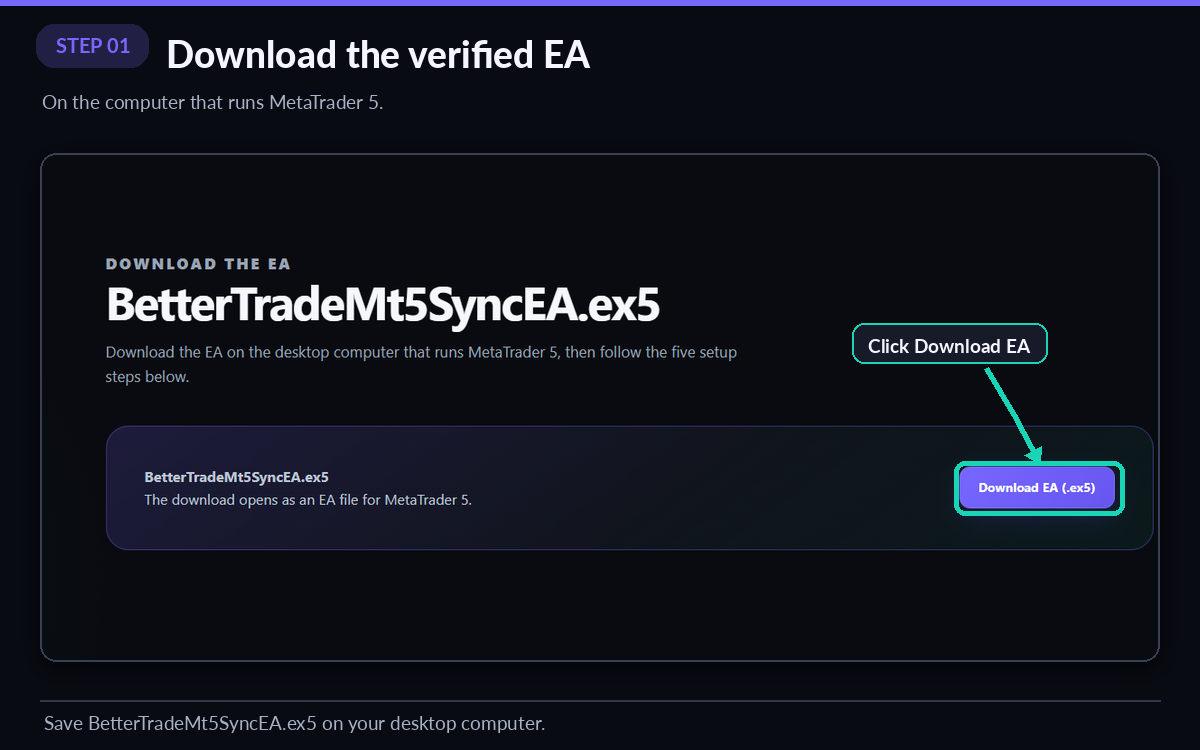
Download BetterTradeMt5SyncEA.ex5 from this page on the computer that runs MT5.
MT5 Auto Sync · eligible Free & Pro accounts
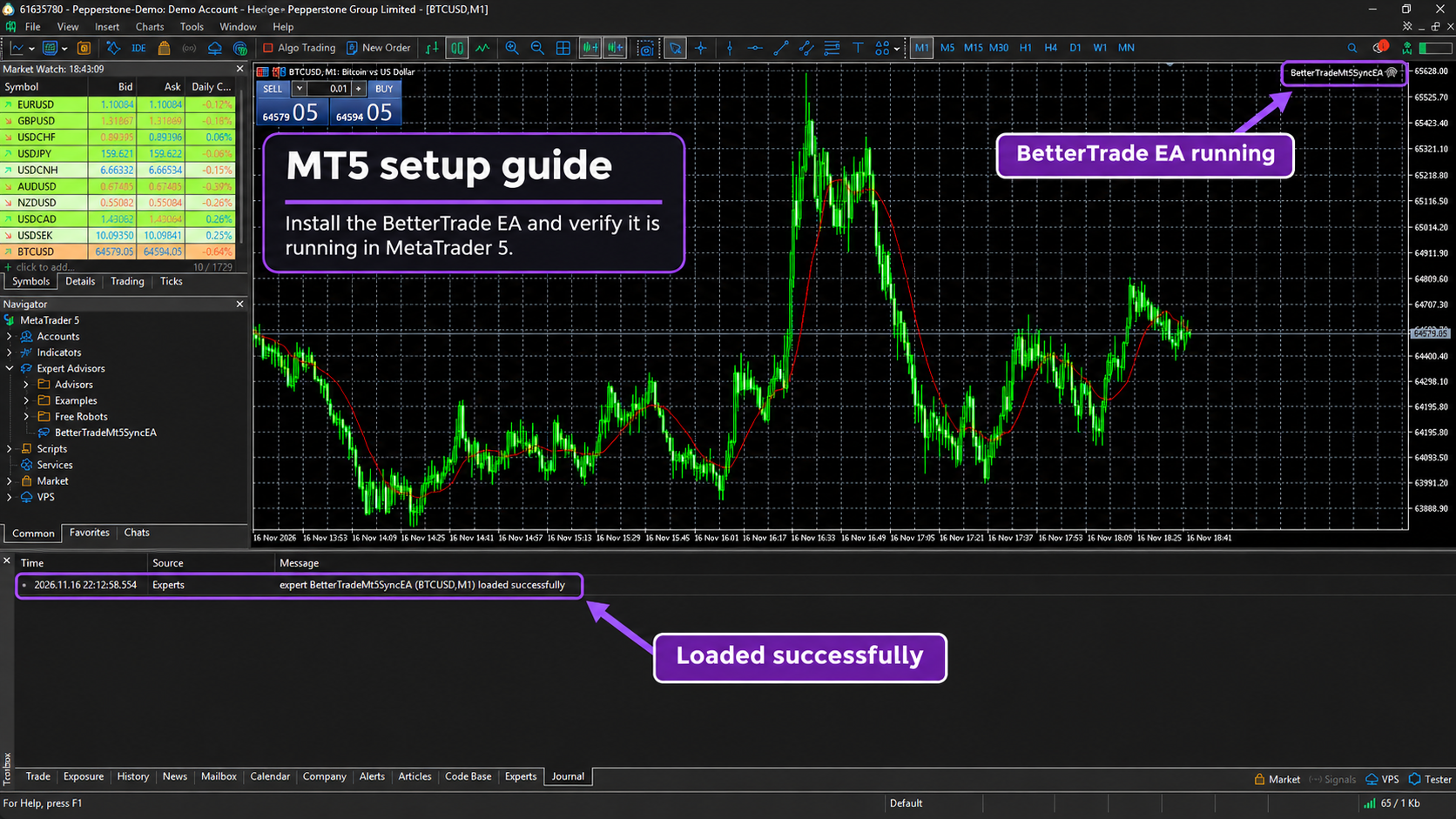
Securely send supported closed trades from MetaTrader 5 Desktop to BetterTrade. Your mobile app generates the temporary pairing key; this page is the desktop installation guide.
Download the EA
Download the EA on the desktop computer that runs MetaTrader 5, then follow the five setup steps below.
BetterTradeMt5SyncEA.ex5
The download opens as an EA file for MetaTrader 5.
Installation
Generate the temporary pairing key only after the EA is installed. A paired connection is not proof that a closed trade has been delivered.
Download BetterTradeMt5SyncEA.ex5 from this page on the computer that runs MT5.
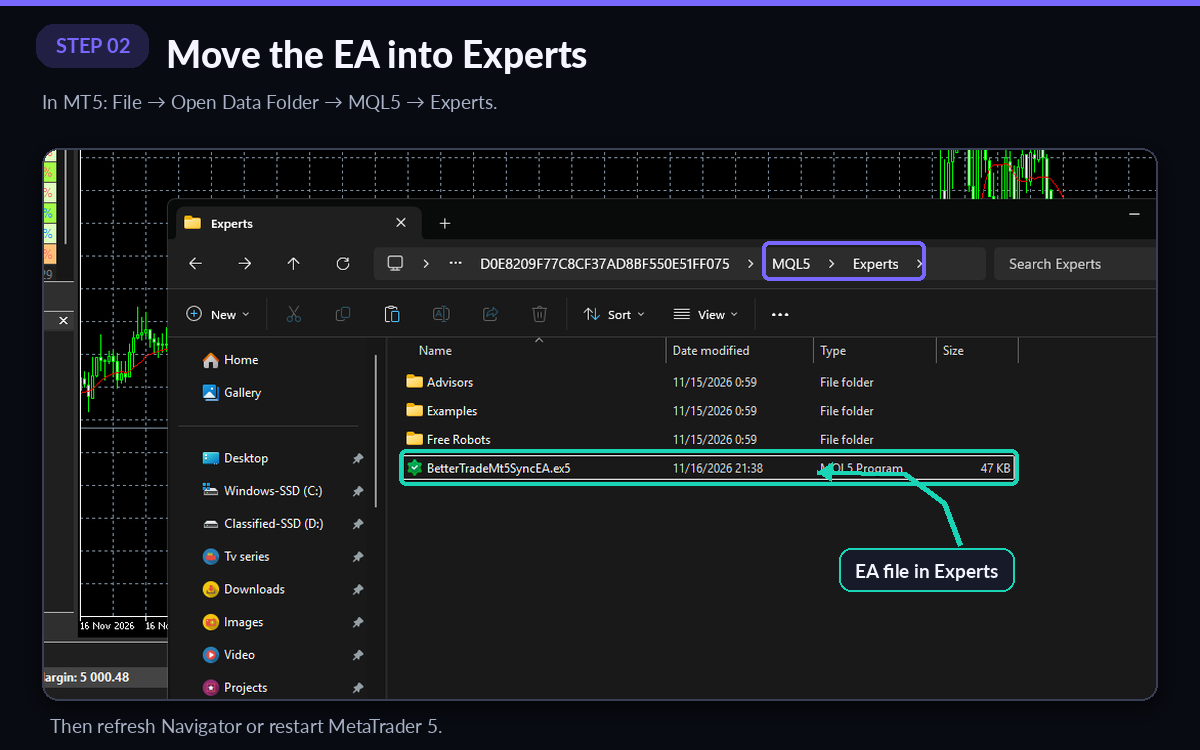
In MT5, select File → Open Data Folder → MQL5 → Experts. Move the downloaded file there, then restart MT5 or refresh Navigator.
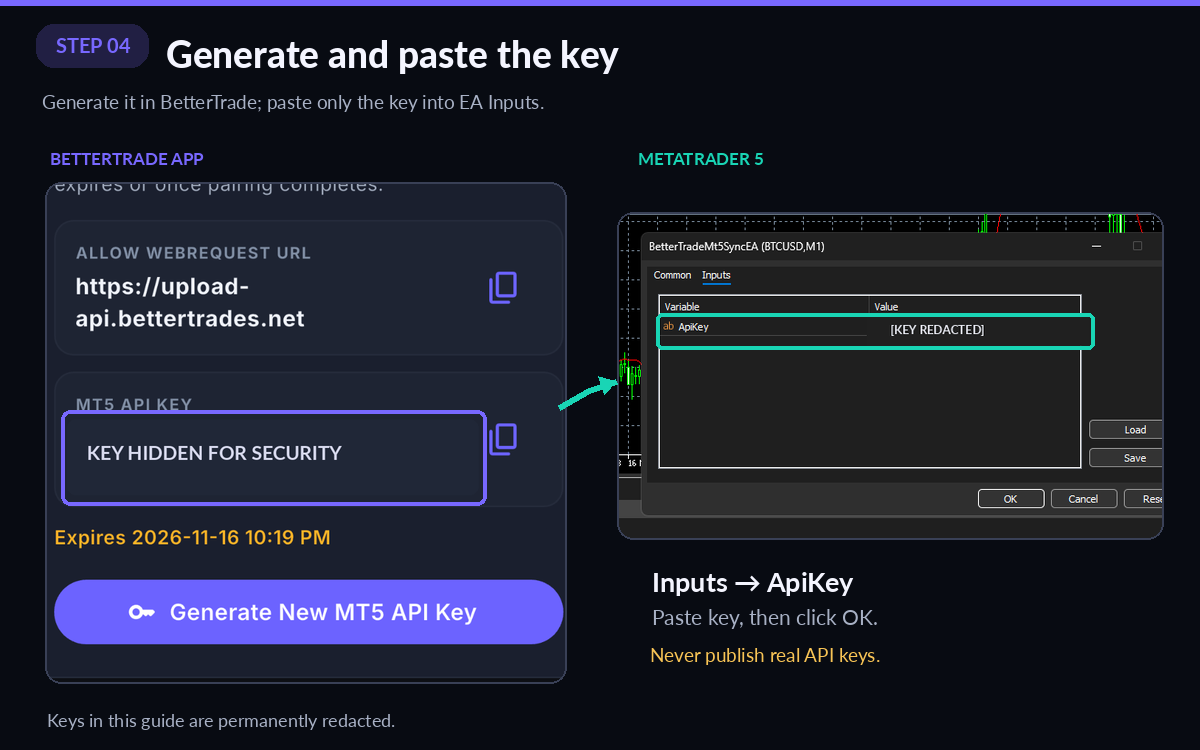
Open Tools → Options → Expert Advisors, enable “Allow WebRequest for listed URL,” then add this exact origin:
https://upload-api.bettertrades.net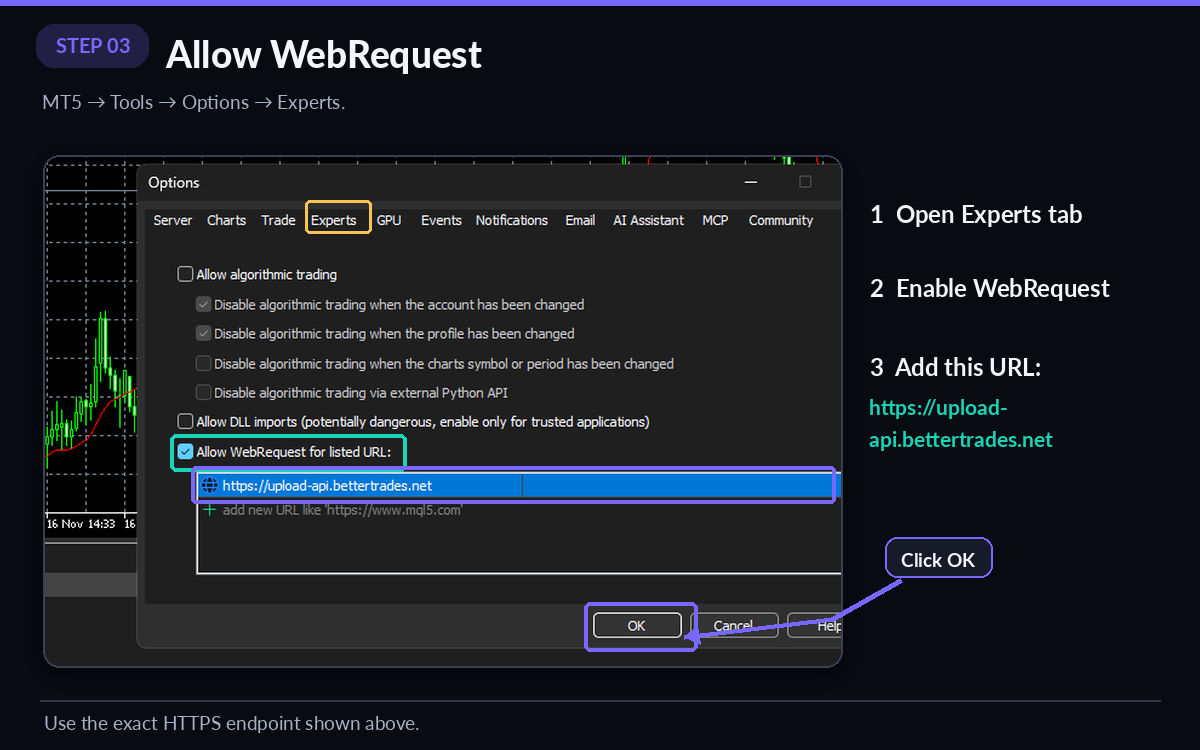
In the BetterTrade mobile app, open MT5 Auto Sync, generate the key, then attach the EA to any chart and paste only that key into its inputs. Never share or save the key in a URL, note, or screenshot.
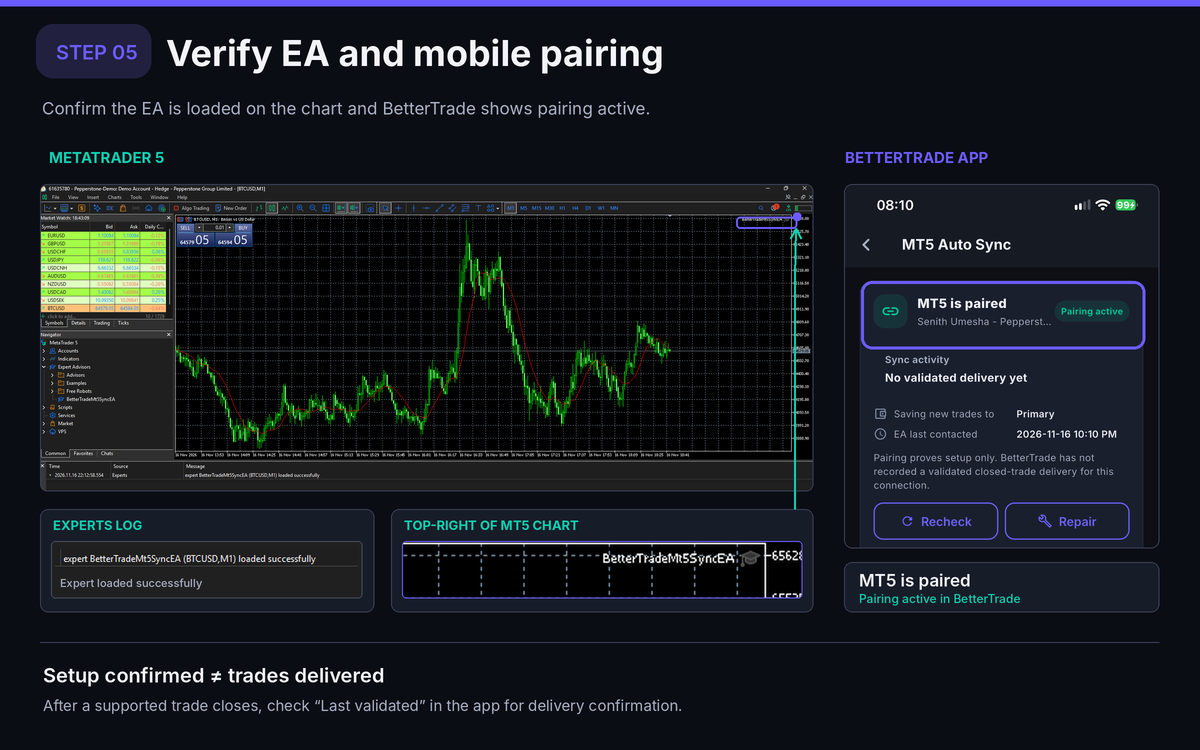
Return to the app to confirm the connection status. After a supported trade closes, check Last accepted delivery. “Paired” alone does not confirm trade ingestion.
Repair & help
Use the BetterTrade mobile app: Settings → MT5 Auto Sync → Generate MT5 API Key. Keys are generated only in the authenticated app, are temporary, and are shown once.
Confirm the file is directly in MQL5/Experts—not a subfolder or archive—then restart MT5 or refresh Navigator.
Generate a new key in the app. If an account is already paired, use Repair pairing or Revoke connection there before pairing another account.
Check the EA is attached, AutoTrading is enabled, and the WebRequest origin is listed. Check the app’s Last accepted delivery timestamp after a supported closed trade. Pairing success is not delivery success.
No. The EA is for closed-trade delivery to a journal. BetterTrade does not place, copy, or manage trades.
Open this guide on the computer running MT5, then generate a fresh temporary pairing key inside the authenticated BetterTrade mobile app.